
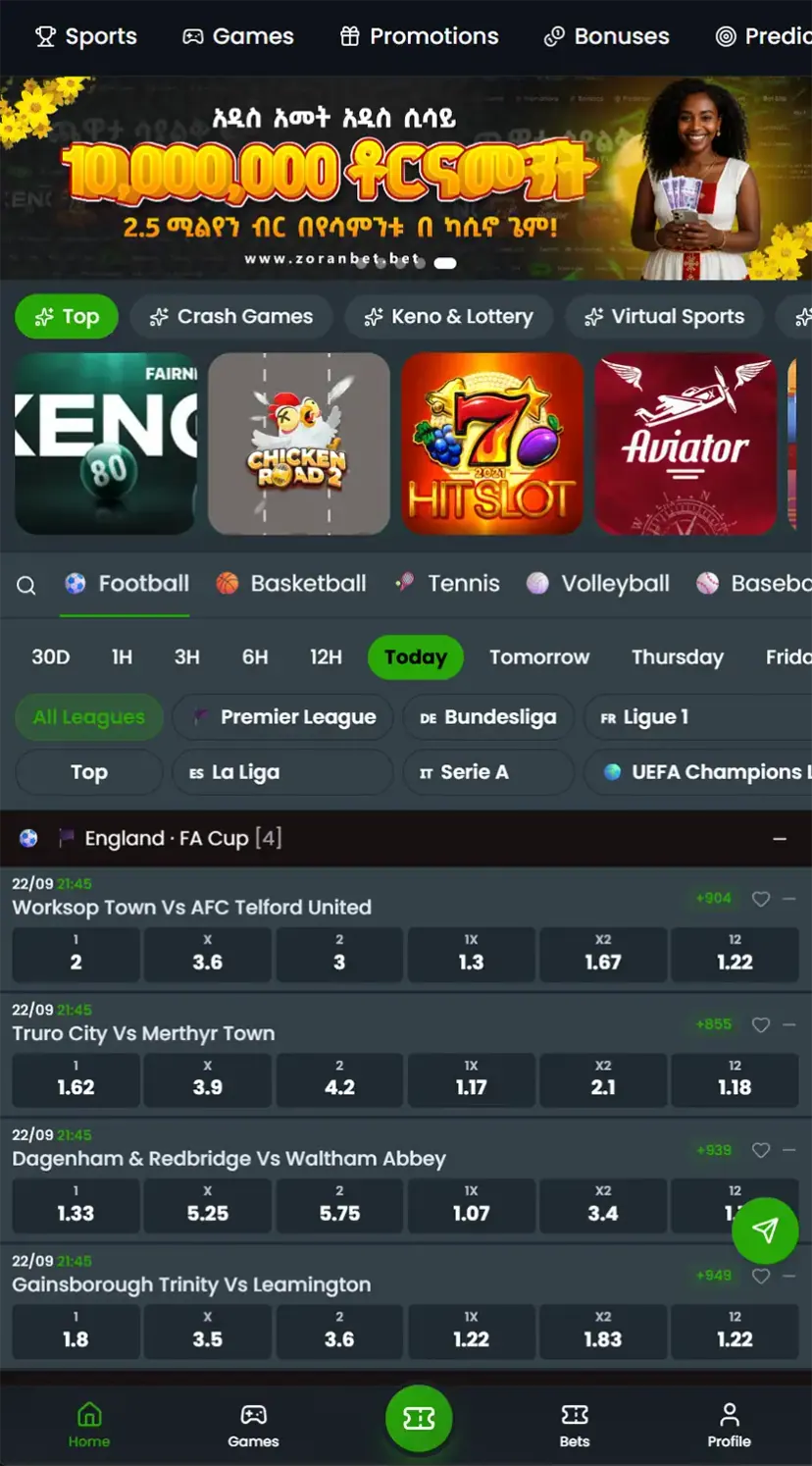

| 🔢 App version | 1.1.3 |
| 📦 File size | 55 MB |
| 📱 Supported OS | Android (APK), iOS (PWA app Safari) |
| 🌐 Interface language | English |
| 🔄 Last update | 22.09.2026 |
Zoran Bet has gained a strong following among bettors in Ethiopia, largely due to its intuitive mobile app that makes wagering on your favorite sports quick and convenient.
How to Download Zoran Bet on Android
At the moment, Zoran Bet's app is built exclusively for Android. Here's how to get it set up:
- Adjust your settings first: Before you can install anything outside the Play Store, you'll need to allow installations from unrecognized sources. Head into your phone's Settings, find "Security," and switch on "Unknown Sources."
- Head to the official site: Open a browser on your phone and navigate to Zoran Bet's website.
- Download the APK: Look for the Android download link on the homepage and tap it to begin downloading the installation file.
- Complete the install: Once downloaded, open your Downloads folder, tap the APK file, and follow the prompts to finish installing.
Once it's installed, just open the app, log in or set up a new account, and you're set to start betting.
How to Download Zoran Bet on iOS
There's no standalone iOS app at this time. That said, iPhone and iPad owners can still use the service through the site's mobile-optimized version - just open a browser, go to the Zoran Bet site, and sign in or register from there.
How to register in Zoran Bet Mobile App
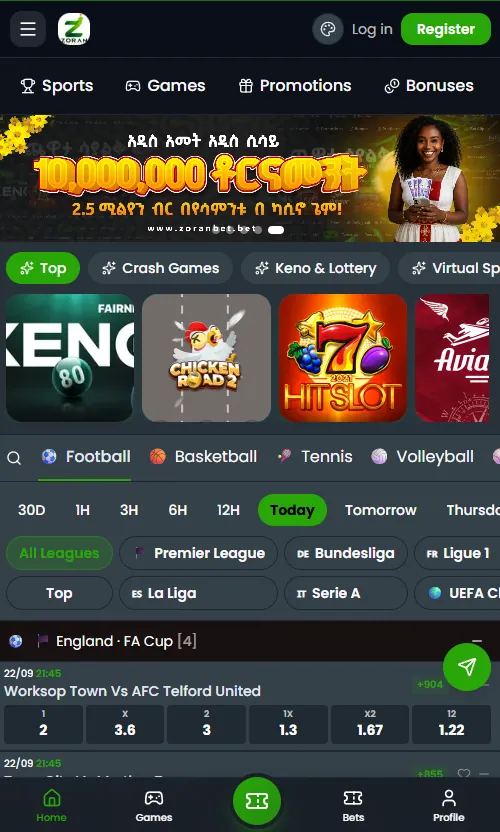
Getting registered only takes a few steps:
- Access the platform: Open the app or head to the website, then hit "Register."
- Fill in your info: Enter your phone number and choose a secure password.
- Confirm your identity: You may be asked to verify the account through email or text message.
Once registration is done, you can fund your account and begin wagering.
How to make bets in App
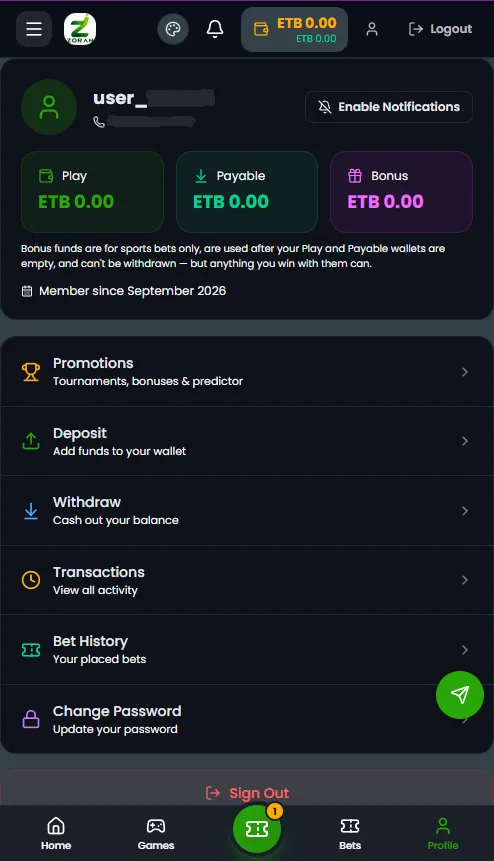
- Add funds: From your account page, pick a payment option (Telebirr or CBEBirr) and deposit however much you'd like.
- Explore matches: Browse through the sports on offer and pick an event you're interested in.
- Pick your bet style: Choose between a straight single bet or an accumulator that combines multiple selections.
- Set your stake: Type in how much you want to bet.
- Confirm: Double-check your picks, lock in the bet, and it'll show up under "My Bets."
- Cash out: Winnings can be pulled out through the "Withdraw" section.
The app performs well across most Android phones and doesn't demand powerful hardware, so it works for a broad range of devices. Highlights include:
- Quick load times and smooth responsiveness
- A clean, straightforward layout without cluttered menus
- Light data consumption, so it won't eat through your mobile plan
Conclusion
Zoran Bet's mobile app delivers a straightforward, reliable betting experience, complete with diverse wagering options, live odds, and secure payment handling. Its clean design works well whether you're new to betting or a seasoned player. Combined with quick withdrawals, mobile-friendly payment options, and strong odds, it's a platform worth checking out for anyone in the market for a dependable betting app.
Frequently asked questions
Can Zoran Bet be downloaded for free?
Yes. The APK file is distributed for free via the official website. Registration is not required to download it.
How do I download the Zoran Bet app for Android?
Go to the official zoran.bet website. Click the "Download App" button at the bottom of the menu. Once the download is complete, locate the zoranbet.apk file in your downloads and install the app. After installation, the app will appear on your phone's home screen.
Can I top up my account in the app?
Yes, of course, you can top up your account and make withdrawals via the app.
How do I install an app on an iPhone?
Currently, the bookmaker does not have an app for iOS users. However, you can create a Zoran Bet icon on your home screen for quick access. To do this, open the official zoran.bet website in Safari, tap the "Share" icon (a square with an upward-pointing arrow) in the bottom bar, and select "Add to Home Screen." Confirm the shortcut name and tap "Add."